Showing posts with label PayPal. Show all posts

Friday, October 15, 2010

WordPress E-Commerce Module PayPal Express Checkout with Coupon Code

WP e-Commerce is a very popular open-source shopping cart plug-in for WordPress, it supports most of the major PayPal payment options include Express Checkout, Web Site Payment STD and Web site payment Pro.

The plug-in supports the coupon discount function as well, however, the shopping cart only sends the total amount after discount to the PayPal, there is no discount coupon and discount price information on the PayPal activities report at all.
In order to let sellers get more information on the transaction involved the promotion coupons , I have modified one of the function - CallShortcutExpressCheckout which under /web-content/plugins/wp-e-commerce/merchants/paypal_certified.php

function CallShortcutExpressCheckout( $paymentAmount, $currencyCodeType, $paymentType, $returnURL, $cancelURL) {
//added $wpc_cart the shopping cart object itself
global $wpdb, $wpsc_cart;
//------------------------------------------------------------------------------------------------------------------------------------
// Construct the parameter string that describes the SetExpressCheckout API call in the shortcut implementation
//exit($cancelURL);
$purchase_log = $wpdb->get_row("SELECT `id`,`billing_region` FROM `".WPSC_TABLE_PURCHASE_LOGS."` WHERE `sessionid`= '".$wpdb->escape($_SESSION['paypalexpresssessionid']) ."' LIMIT 1", ARRAY_A) ;
$usersql = "SELECT `".WPSC_TABLE_SUBMITED_FORM_DATA."`.value, `".WPSC_TABLE_CHECKOUT_FORMS."`.`name`, `".WPSC_TABLE_CHECKOUT_FORMS."`.`unique_name` FROM `".WPSC_TABLE_CHECKOUT_FORMS."` LEFT JOIN `".WPSC_TABLE_SUBMITED_FORM_DATA."` ON `".WPSC_TABLE_CHECKOUT_FORMS."`.id = `".WPSC_TABLE_SUBMITED_FORM_DATA."`.`form_id` WHERE  `".WPSC_TABLE_SUBMITED_FORM_DATA."`.`log_id`=".$purchase_log['id']." ORDER BY `".WPSC_TABLE_CHECKOUT_FORMS."`.`order`";
//exit($usersql);
$userinfo = $wpdb->get_results($usersql, ARRAY_A);
//  print("
".print_r($usersql,true)."
"); // print("
".print_r($userinfo,true)."
"); $nvpstr="&Amt=". $paymentAmount; $nvpstr = $nvpstr . "&PAYMENTACTION=" . $paymentType; $nvpstr = $nvpstr . "&RETURNURL=" . $returnURL; $nvpstr = $nvpstr . "&CANCELURL=" . $cancelURL; $nvpstr = $nvpstr . "&CURRENCYCODE=" . $currencyCodeType; // added following 3 lines to send description to PayPal foreach($wpsc_cart->cart_items as $cart_item){ $nvpstr = $nvpstr . "&DESC=" . $cart_item->product_name . " w COUPON# " . $wpsc_cart->coupons_name . " DISCOUNT $" . "$wpsc_cart->coupons_amount"; } $data = array();

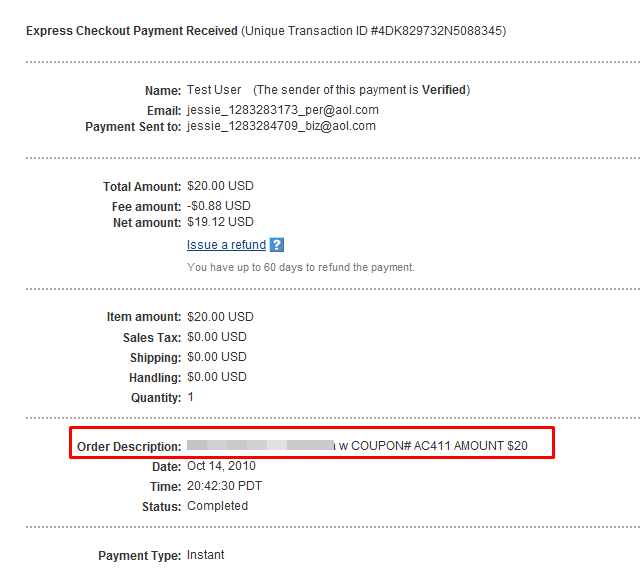
The shopping cart object $wpsc_cart needs to be announced as global, then add the coupon code number and discount total at DESC parameter which will be passed to PayPal API as payment description. The example below shown the applied coupon code and the discount amount on the PayPal transaction report.

For PayPal Web Payment Standard you will need to modify paypal_multiple.php as following
//$data['item_name_'.$i] = "Your Shopping Cart";
$itemdesc = "Discount " . $wpsc_cart->coupons_name . " $" . $wpsc_cart->coupons_amount . " for ";
foreach($wpsc_cart->cart_items as $cart_item){
  $itemdesc = $itemdesc . $cart_item->product_name . " ";
  }
$data['item_name_'.$i] = $itemdesc;

Friday, April 30, 2010

ezSHOP - A PayPal Shopping Cart For Your Google Site


On my previous posting, I have demoed using the Google Spreadsheet to manage the PayPal shopping cart on Google Site. However, the back-end server was an Amazon EC-based PHP agent. Now I have ported the server to Google App Engine which users can just use their Google authentication  login to finish the setup without giving away their passwords.

To begin the store setup you need to prepare your items on the Google Spreadsheet, you can see the example spreadsheet here. Make sure your spreadsheet has the same headers (case sensitive), the sku, title, price, picture url fields are required, all others are optional.

To start the set up go to  ezshop411.appspot.com

You need to have a Google account (Gmail or Google Apps account) to start. Once you login, you will be bringing to the User Preference page. Your nick name will be your Google account id and the email will be your Google Email. The following two fields asking for an additional Google account which should have minimum READ access right for the spreadsheet you gonna use for the store. You can enter the same account information as your original one, however, for the security, we recommend use different Google account.
Once all information filled out, click at the Update button to save them. Now click at "Main" button you start the build-up. The main page already load all your Google Spreadsheet files' name from your site for you to choose to generate the token to create the PayPal store.
user preference settings


Once you decide which file to use just click at "Add" button to create one store Gadget list. It will show you the time it was created and the store Gadget URL which you will need to use it when add the store gadget to your Google Site. You can also remove the listing by clicking at "Delete" button. The deleting will not delete your spreadsheet on your Google Doc, however, if you have any Gadget using this token to access the store information will stop to function. If you click at the name of the list it will show you the spreadsheet in CSV format, you can use the feature to double check if you choose the right file.

Now, open the Google Site, select the site you want to add the ezSHOP store, choose the PAGE you want to add the store Gadget, click at "Edit page" button. Once you are in EDIT mode, go to the section where you want to add the Gadget, then click at "Insert" button, choose "More gadgets"

A new window will pop out -

Click at "Add gadget by URL" on the left-hand side.

Type in the URL which you copy from your main page's Gadget URL then click at "Add" button.

A Gadget setup screen will be displayed as above. Gave the Gadget the proper width and height, make sure you check the "include a scroll-bar on gadget when necessary". Click "OK" to finish setup.
You can always come back to edit the Gadget setting by clicking at "Properties" of the Gadget.
Once you save the PAGE from EDIT mode, you should be able to see the store items listing right away. The current released version only supports PayPal "Buy Now" button. I will add the PayPal shopping cart function for the next release. Once customer click at "Buy Now" button, a PayPal payment page will show up and customer can fill up the information to complete the transaction!
There are some other issues like shipping charge, sales tax, inventory control... etc. You will need to go to your PayPal account page to  set up correctly. Some of the functions can be done programmatically through PayPal API, we will discuss these more details in the future releases.

Above is the sample spreadsheet we used to do the demo, you can download it and upload it to your Google Doc to test this ezSHOP Gadget.


********************************************************
NOTE:
This Gadget only works under HTTP not HTTPS since there is PayPal service url link within the HTML codes, unfortunately, now Google Sites default URL only allows HTTPS, like https://sites.google.com/a/.... therefore, you have to map your own domain host name to the Google SITES to use HTTP, for example, create a host named "store" under your Domain, so http://store.yourdomain.com will be your url. To map your domain host to Google Sites just go to "Manage Site" and choose "Map this site" button to proceed. Only done, you can see the Gadget under you own domain url page.

Friday, March 19, 2010

Create A Digital Contents Store Under Google Sites with PayPal Shopping Cart

Google Apps has become one of the most popular (Cloud Computing) IT solution for the businesses, the built-in Google Sites is a very powerful tool for publishing the web contents. The Google Sites uses the Gadget concept to create the pages, it does offer all kind of gadgets for you to choose, however, for the shopping cart gadget beside the Google Checkout Store Gadget I didn't find any gadget can offer a simple shopping cart with PayPal checkout function and Google Checkout Store Gadget only accepts Google Checkout payments.


Quite a few my customers are using PayPal as their internet merchandise service, in order to help them to accept Credit card and PayPal payments, I have developed some Gadgets for them to embed into their Google sites. The shopping Cart concept is the same as Google Shopping Cart Wizard, a Google Spreadsheet is used to maintain the store items.


When creating the Gadget, the administrator needs to decide to use PayPal BuyNow or PayPal Shopping Cart feature, and add the correct Paypal email address, the final step to to decide which Google Spreadsheet to use. Once finish, a simple layout shopping store will be generated right away! Anything you change on the spreadsheet will be updated on the web site too.
The demo case is a photo gallery store which customers need to download the photo right afetr they pay. Therefore, the PayPal Web Site Payment Standard API has been implemented to process the real time transactions. Once the server receive the payment confirmation from PayPal, an email will send to the buyer with a digital link which points to the download site of the digital content (photo image). All the contents are stored in the Google Docs without public access, the server agent needs to find out  the link and make it accessable for the new customer and generate the email with the link to specified customers.